Direkt zum Inhalt

Promotion manager

Sign in to view, publish, and manage price promotions.

Promotion manager

Promotion campaigns

Drafts can be published with one click. Scheduled and active promotions are checked by the live scheduler every minute.

Filter promotions:
Status Campaign Target Discount Start End Actions

How-to guide

Schedule a promotion with confidence

Follow the same screens you will use in the promotion builder, from choosing a promotion type through publishing and monitoring it.

Draft first, publish when ready

Saving a draft does not change the website. Once you publish it, the scheduler starts and ends the promotion automatically using the dates you entered.

Shared workflow Product + PDP Homepage Sales page Publish + statuses

Shared workflow

Every promotion follows these steps

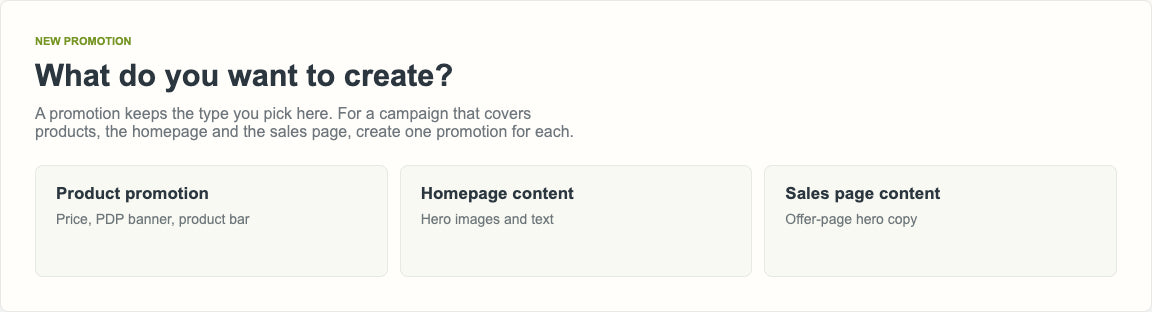
Choose one type per promotion. If one campaign changes products, the homepage, and the sales page, create three promotions with the same schedule.

Promotion type selection showing Product, Homepage, and Sales page options
1

Choose the right type

Start with what you want to change

Product changes prices and product-page content. Homepage changes hero content. Sales page changes the Angebote page.
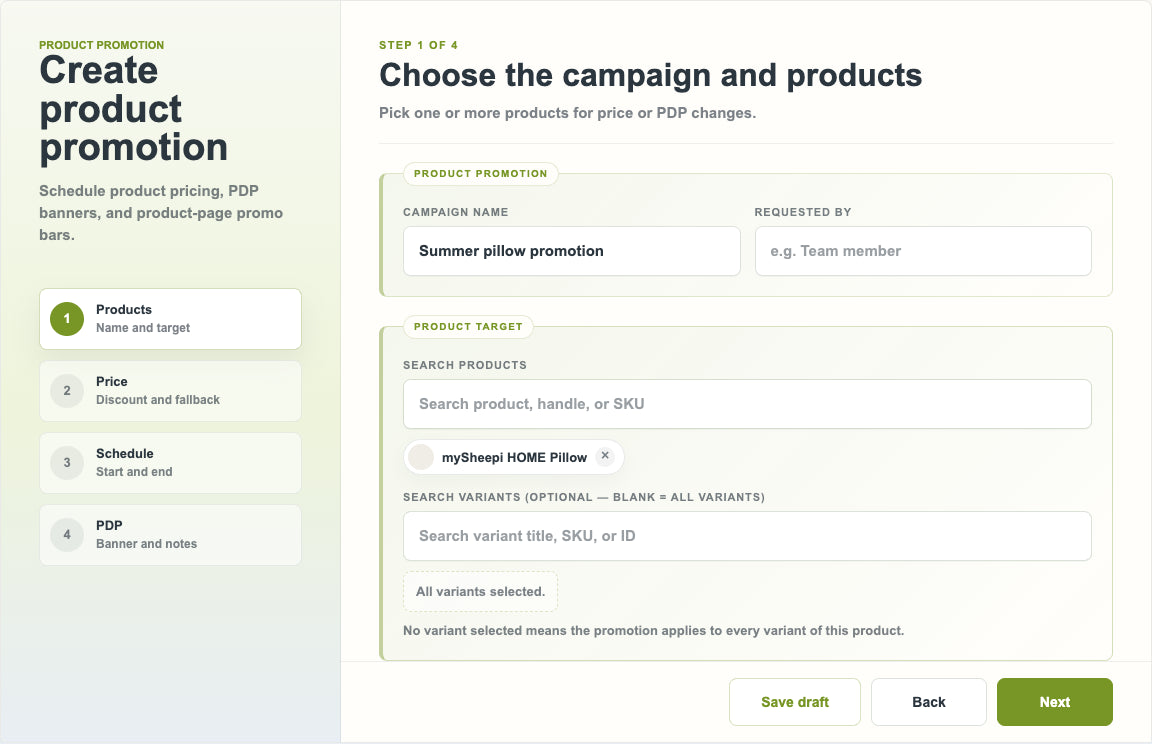
Product promotion setup screen with campaign name and selected product
2

Build the draft

Add the campaign details

Name the campaign, choose every product that should participate, then add the shared price and content. Only use per-product overrides when one item needs something different.
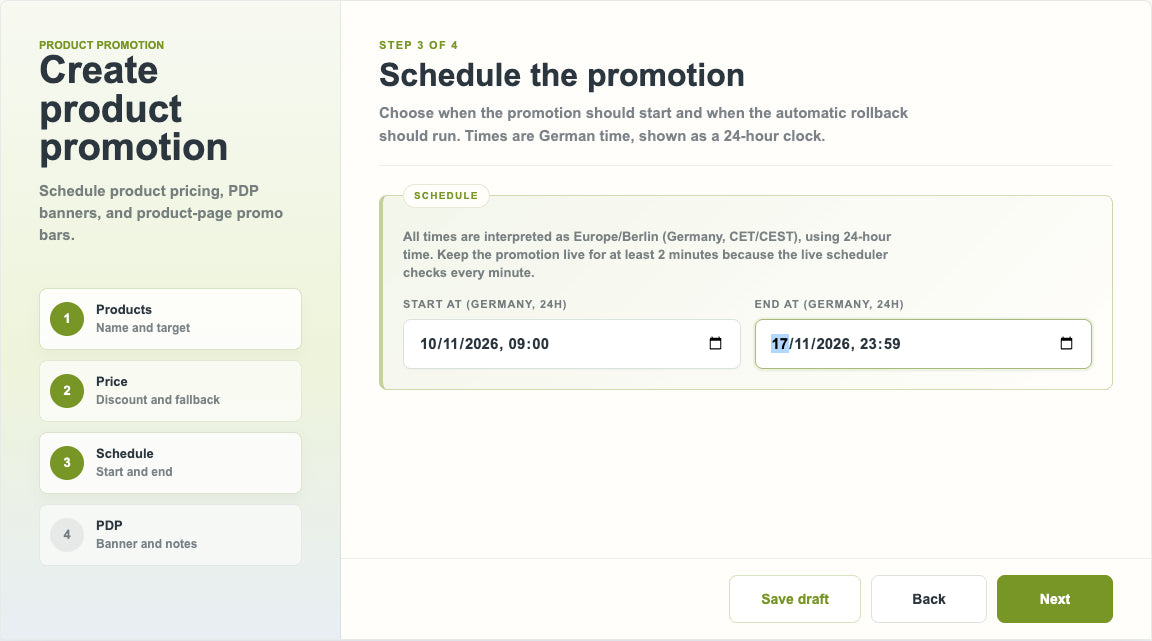
Promotion schedule screen with start and end date fields
3

Set the timing

Choose the start and end

Times use the German 24-hour clock. The scheduler checks every minute, applies the promotion after the start time, and rolls it back after the end time.

Product promotions

Price, PDP banner, and top promo bar

A product promotion can change the price and add two different promotional elements. The PDP banner and top promo bar are independent and can be used together or separately.

TOP PROMO BARFull-width message at the very top of the page
mySheepi
Product image
PRODUCT PAGE

Product title and price

Normal product information and purchase controls.
PDP BANNERPromotional image inside this product page
Product promotion shared price fields
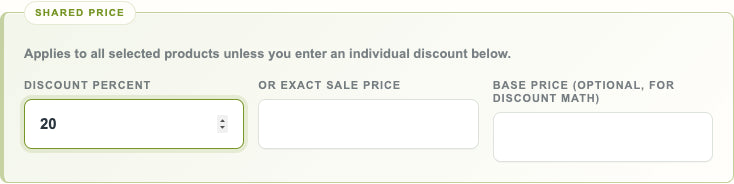
Price

Choose a discount or exact price

Use one shared price change for all selected products, or enable per-product discounts. Leave the after-promotion fields empty to restore the exact original Shopify prices.
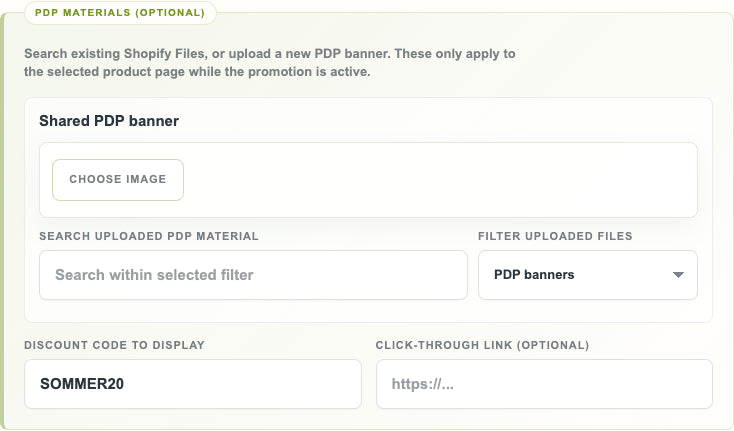
PDP banner image, discount code, and link fields
PDP banner

Add the image shown inside product pages

Choose the promotional image, optional discount code, and optional click-through link. It appears only on selected product pages while the promotion is active.
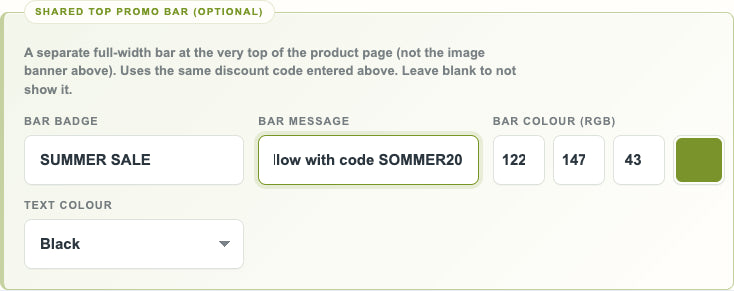
Product top promo bar badge, message, and colour fields
Top promo bar

Configure the full-width message above the page

This is separate from the PDP image. Add a badge, message, background colour, and text colour. Leave the message blank to keep it hidden.

Shared versus individual:The shared price, banner, and bar apply to every selected product. Enable an override only when one product needs a different value.

Homepage promotions

Temporarily replace the homepage hero

Homepage promotions change presentation only; they do not change product prices. Empty fields preserve the current homepage content.
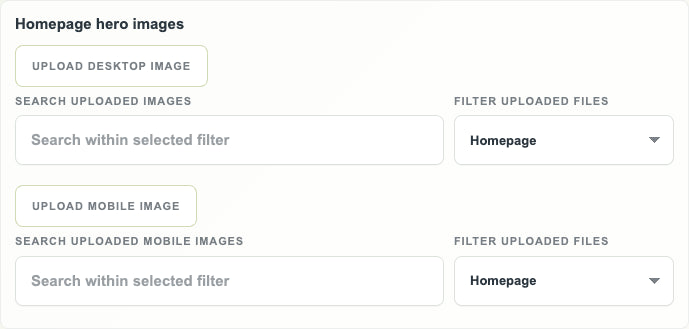
Homepage desktop and mobile hero image fields
Hero images

Provide desktop and mobile artwork

Select existing Shopify Files or upload new images. Use the desktop field for wide screens and the mobile field for phone-friendly framing.

But what is this?

This is how the two image choices translate to desktop and mobile visitors.

Desktop hero
Mobile hero
Homepage headline and subheading fields
Hero copy

Set the message, alignment, and buttons

Enter the headline, subheading, button labels, and URLs. Choose left or right text alignment to keep the copy readable over the selected artwork.

But what is this?

This is how the copy and button fields appear in the homepage hero.
mySheepi
SUMMER COMFORTSleep better this summerCooling comfort for warm nights.
Explore offersLearn more
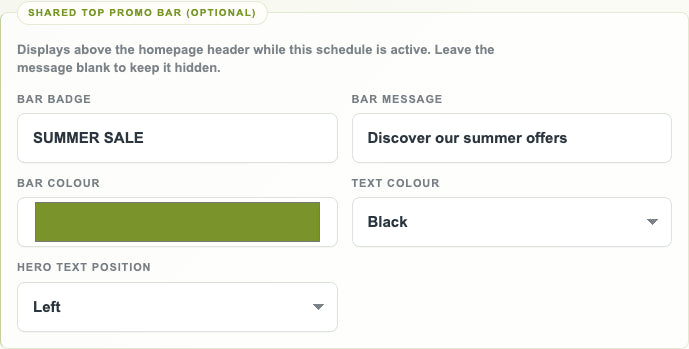
Homepage top promo bar fields
Homepage top bar

Add an optional message above the header

Set the badge, message, bar colour, and text colour. It appears only on the homepage during this schedule; leave the message blank for no bar.

But what is this?

This is the bar visitors see above the homepage header.

SUMMER SALEDiscover our summer offers
mySheepi
Automatic rollback:At the end time, the scheduler removes these temporary overrides and restores the normal homepage hero and top bar.

Sales-page promotions

Update the Angebote page for a campaign

Sales-page promotions temporarily replace the promotional hero on the Angebote page. Empty fields keep the page's current defaults.
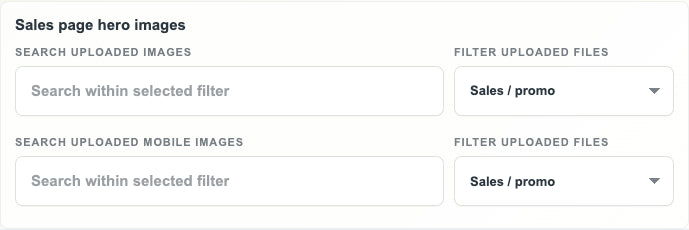
Sales page desktop and mobile hero image fields
Hero images

Use separate desktop and mobile artwork

Choose campaign artwork from Shopify Files for both screen sizes so the important content remains visible on every device.

But what is this?

This is how the two image choices translate to desktop and mobile visitors.

Desktop sales hero
Mobile sales hero
Sales page headline and countdown fields
Headline + countdown

Explain the offer and its urgency

Replace the sales-page headline and countdown text for the active window. Leave either field empty to retain the existing copy.

But what is this?

This is how the headline and countdown appear in the sales-page hero.
mySheepi Angebote
LIMITED TIMESummer sleep offersEnds Sunday at midnightExplore the offers
Sales page top promo bar fields
Sales-page top bar

Add an optional message above the header

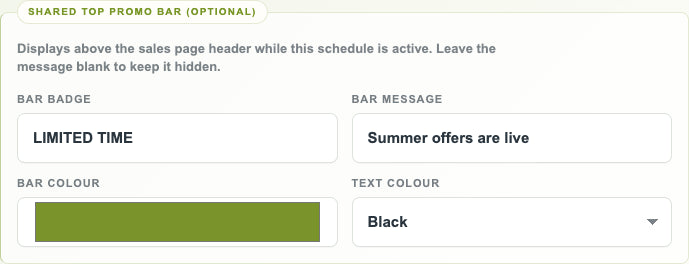
This bar is scoped to the Angebote page. Set its badge, message, background, and text colour, or leave the message blank to keep it hidden.

But what is this?

This is the bar visitors see above the Angebote-page header.

LIMITED TIMESummer offers are live
mySheepi Angebote
Automatic rollback:The scheduler restores the default sales-page hero, copy, countdown, and bar after the end time.

Finish safely

Review, publish, and monitor

4

Save and check

Save the draft, reopen it from the list, and verify products, prices, content, links, and dates.

5

Publish

Click Publish. A future promotion becomes Scheduled; one whose start time has arrived becomes Active.

6

Monitor or stop

Edit scheduled content when needed. Use End now only when an active promotion must stop early.

At a glance

What each status means

DraftSaved only. Nothing is live.
ScheduledPublished and waiting for its start time, or applying a change.
ActiveThe promotion is currently applied to the website.
EndedThe end time passed and the promotion was removed automatically.
CancelledThe promotion was cancelled before starting or stopped manually.
ErrorShopify could not apply it. Read the error, correct the campaign, and try again.

Finding older campaigns: Current hides Ended and Cancelled campaigns. Use the filters on the promotions page to view either group or choose All.

New promotion

What do you want to create?

A promotion keeps the type you pick here. For a campaign that covers products, the homepage and the sales page, create one promotion for each.

Promotion builder

Create promotion

Choose what you are preparing, save a draft whenever you need to, then publish it from the list.

  1. 1
    ProductsName and target
  2. 2
    PriceDiscount and fallback
  3. 3
    ScheduleStart and end
  4. 4
    FinishBanner and notes

Step 1 of 4

Choose the campaign and products

Pick one or more products for price or PDP changes.

What's on promotion
Product target

No variant selected means the promotion applies to every variant of this product.

Step 2 of 4

Set the price change

Use either a discount percent or an exact sale price. Add an after-promo price only if something should stay active.

Shared price

Applies to all selected products unless you enter an individual discount below.

Product discounts

Every selected product uses the shared discount or exact sale price set above. All products use the same schedule.

After it ends (optional)

Leave these fields empty to automatically restore the exact pre-promotion Shopify prices.

Homepage hero content

These fields temporarily override the homepage while this schedule is active. Empty fields keep the current homepage default.

Homepage hero images

Homepage hero text

Homepage top promo bar (optional)

Displays above the homepage header while this schedule is active. Leave the message blank to keep it hidden.

Sales page content

These fields temporarily override the sales page hero while this schedule is active. Empty fields keep the current page default.

Shared top promo bar (optional)

Displays above the sales page header while this schedule is active. Leave the message blank to keep it hidden.

Sales page hero images

Step 3 of 4

Schedule the promotion

Choose when the promotion should start and when the automatic rollback should run. Times are German time, shown as a 24-hour clock.

Schedule

All times are interpreted as Europe/Berlin (Germany, CET/CEST), using 24-hour time. Keep the promotion live for at least 2 minutes because the live scheduler checks every minute.

Step 4 of 4

Review and save as draft

Review the details and notes. This saves a draft; publish it from the list when ready.

PDP materials (optional)

Search existing Shopify Files, or upload a new PDP banner. These only apply to the selected product page while the promotion is active.

Shared PDP banner

Product banners

Every selected product uses the shared banner and link. The shared copy code above applies unless a product gets its own top-bar code below.

Shared top promo bar (optional)

A separate full-width bar at the very top of the product page (not the image banner above). Uses the same discount code entered above. Leave blank to not show it.

Product promo bars

Every selected product uses the shared top promo bar and copy code above. Enable this to set a different badge, message, copy code, or colour for each product.

Overall notes (optional)

Add any internal context your team should know about this promotion.